Permissions
You will require the following permissions:
- You will require an Access Role
We're here to help explain each of the different methods for signing in to our app.
- Tap Selenity
Expenses Mobile on your device.
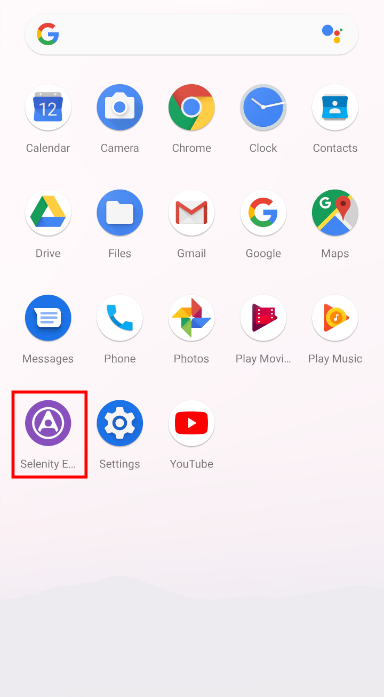
- Enter the same credentials that you use to sign in to the web version of Selenity Expenses. The required credentials are:
- Company ID
- Username
- Password (press
 to show what you have typed in the 'Password' field)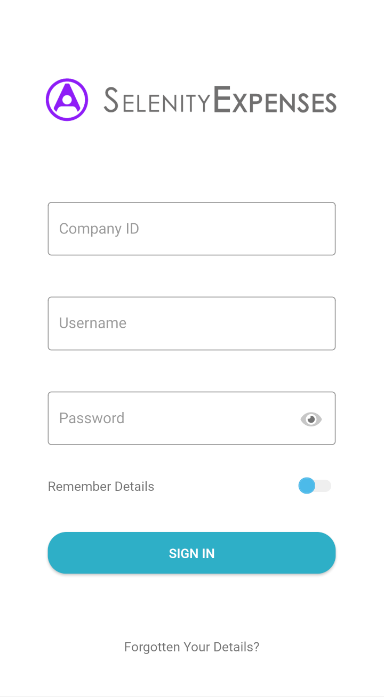
- Tap Sign In. You will then be directed to the Homepage.
Tip: Select Remember Details to store your sign-in details. We will remember your Company ID and Username for the next time you sign in. We will not remember your password for security reasons.
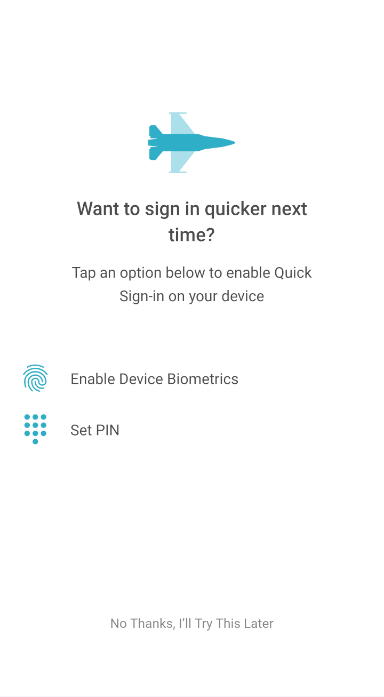
Note: At this point, you will be asked if you would like to set up Quick Sign-in. Depending on your device, this will allow you to use Touch ID/Face ID or Device Biometrics. Alternatively, you can set up a 4-digit PIN which can be used instead of entering your credentials. For more information on this, view Configure Quick Sign-In.
 to show what you have typed in the 'Password' field)
Sign In Using Quick Sign-In
Note: You must have Quick Sign-in configured in order to use one of these methods to sign in.
Note: You must have Quick Sign-in configured in order to use one of these methods to sign in.
- Tap Selenity
Expenses Mobile on your device.
- You will be prompted to either enter your PIN, use Touch ID/Face ID, or use your device's biometrics.

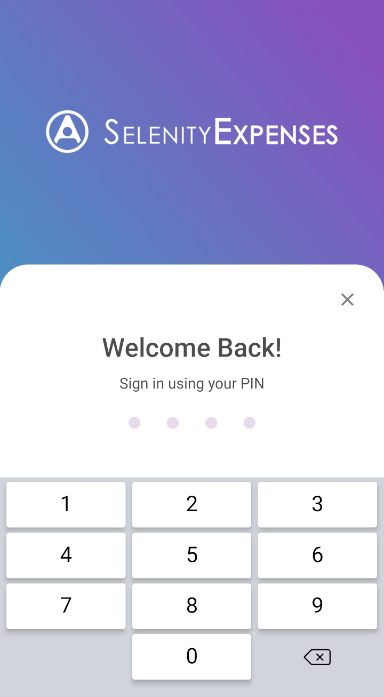
- Tap Cancel or
 to close the prompt and return to the 'Sign-in' page.
Note: If you have both Touch ID/Face ID/Device Biometrics and a PIN enabled, and you have an issue signing in with Touch ID/Face ID/Device Biometrics, you will be able to sign in using your PIN. Cancelling out of the PIN entry will take you back to the 'Sign-in' page.
You will have 3 attempts to enter your PIN correctly. If you use all of these attempts, you will be required to sign in using your Company ID, Username, and Password. Once successfully signed in, you can reset your PIN by navigating to Settings | Setup Quick Sign-in.
- Tap Cancel or

 to close the prompt and return to the 'Sign-in' page.